Try it free for 14 days
No credit card. Launch your first automation and the trial extends to 28 days.
Sign-up link: https://app.downlineautopilot.com/signup?lang=en
Everything you need to start, on one page.
Keep this link. It is the guide you'll come back to, and it is always up to date — there is no newer version somewhere else.
What it does
Downline Autopilot reads your own doTERRA organization from myOffice — your reports, from your account, exported by you — and keeps it up to date in a CRM that is only yours.
It shows you who has stopped ordering and how long ago, then writes to those people on your behalf: in their language, in the morning of their own time zone, with your personal link.
And it deliberately leaves a slice of them out of every campaign, so that at the end you know how many of those reorders happened because of you — and how many would have happened anyway.
What you need
- A doTERRA Wellness Advocate account with access to myOffice.
- Google Chrome on a computer. The extension reads the reports you are already looking at, while you are the one logged in: it never learns your password and sends nothing to anyone except your own CRM.
- Fifteen minutes the first time. Two minutes a week afterwards.
The four steps
One at a time. Each one says how long it takes and why it matters, not just which button to press.
- 1
Sign up
2 minutesWhy
The form asks for your doTERRA OwnerID. You find it in your myOffice shop link — …/shop?OwnerID=XXXXXXX — and those digits are your ID. It matters because every link in your emails has to place the purchase under you: without it, your customer's order would not be credited to you.
How
- 1Open the sign-up link at the top of this page.
- 2Fill in your name, an email, a password, your team name, country and language.
- 3Paste your OwnerID.
- 4Accept the terms, and you're in: the CRM opens on the Get started page, which always tells you where you are and what is missing.
No card is requested for the free trial either.
- 2
The Chrome extension
3 minutesWhy
myOffice has no official way to export your data to another program. So the extension reads the reports you already see, while you are logged in, and sends them to your CRM. It doesn't know your password and it talks to no server other than yours.
How
- 1Install it from the Chrome Web Store — one click on “Add to Chrome”, and it keeps itself up to date from then on.
- 2Click the puzzle icon in the Chrome toolbar and pin the purple icon.
- 3Inside the CRM open Get started and copy your CRM address and your token.
- 4Click the extension icon and paste them into the two fields of the popup.
- 5Press “Check connection”. It must say Connected.
https://chromewebstore.google.com/detail/downline-autopilot-sync-f/ihpocagolfkapeiemhkiombdnfofhalg
Prefer not to paste anything? The Get started page also offers a pre-configured ZIP with your token already inside. That route uses Chrome's Developer mode and does not update itself — the store version does.
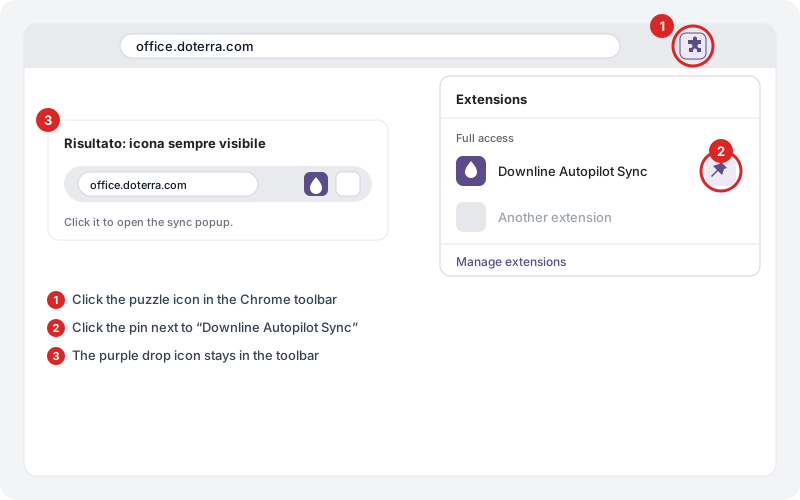
The captures come from the app as it is today. The interface runs in English and Italian; these happen to be in Italian.
- 3
The first sync
5–20 minutes, depending on your sizeWhy
Until this runs, the CRM knows nothing. The genealogy tells it who your people are; the orders tell it what they buy and how often — and without the orders several features stay switched off on purpose.
How
- 1Go to office.doterra.com and log in as usual.
- 2Click the extension icon → Full synchronization. You don't have to open any report: it does everything. A purple box at the bottom right shows the progress — roughly a minute per 5,000 people, all levels.
- 3Then do the orders too: same icon → pick “last 12 months” from the dropdown → Sync orders. It takes longer, and it is what lets the CRM know what people buy and how often.
- 4Go back to the CRM: the Home page now shows your organization.
Rhythm afterwards: a quick sync (7 days) once a week, a full sync once a month. The popup shows the date of the last sync of each kind.
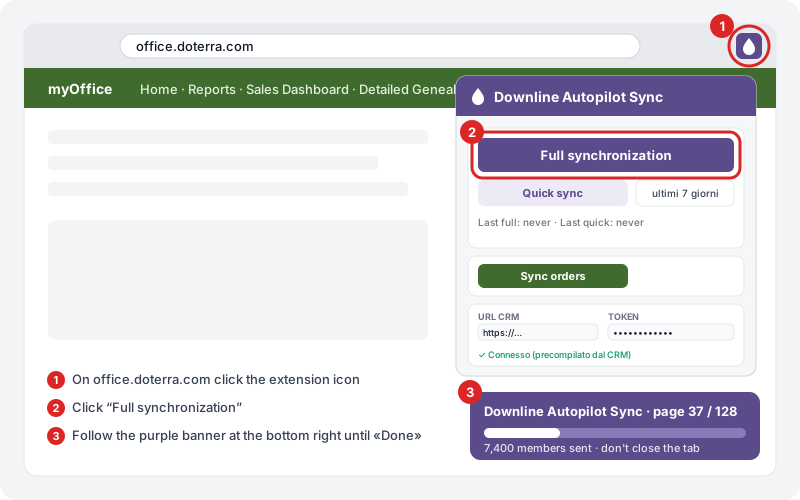
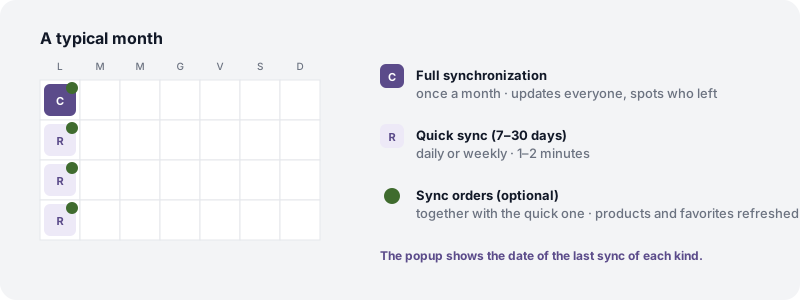
The captures come from the app as it is today. The interface runs in English and Italian; these happen to be in Italian.
- 4
The first campaign
10 minutes — and nothing goes out until you say soWhy
The CRM sorts your customers by how long it has been since their last order. Start with the right-moment band, 22–60 days: those are the people running out of what they bought, and it is where this works best.
How
- 1Go to Automations → New, or to Customers and use the button next to “Right moment”.
- 2In the “Who receives” step you can take anyone out: countries, member types, a whole branch, single people. Underneath you always read “N will receive — M excluded because…”, so you know exactly who you are writing to before you press send.
- 3Keep the control group at 50% for your first campaign.
- 4Launch. The emails do not all go out at once: they go in batches, only inside each recipient's own time window, and nobody receives more than one email every 72 hours.
Before you send anything
- ·Settings → Sender: the name you want people to see and your postal address — at the bottom of commercial email it is required by law in the United States. If you own a domain you can connect it: the CRM shows you the DNS records and verifies them. Otherwise start with the platform sender.
- ·Settings → Email: check the OwnerID, the sending window (9am–1pm in the recipient's local time by default) and the automatic warm-up, which starts slow — 200 emails on day one, then more — so you don't land in spam.
- ·Settings → Exclusions: if a front-line leader doesn't want you writing to their customers, exclude them and their whole group. Same for anyone already using this tool: you avoid writing twice to the same people.
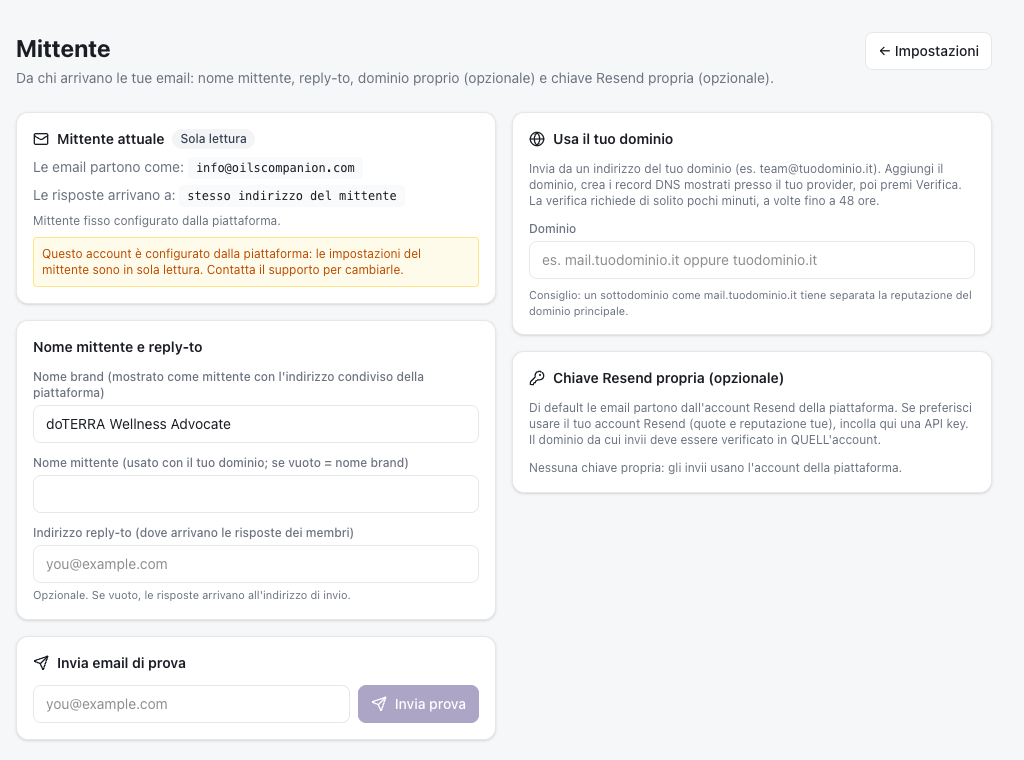
The control group
The CRM holds back a slice of people it does not write to. They answer the only question that matters: how many of these would have ordered anyway? At 50% you find out whether the tool works, instead of taking credit for orders that would have arrived regardless. You can lower it once you know.
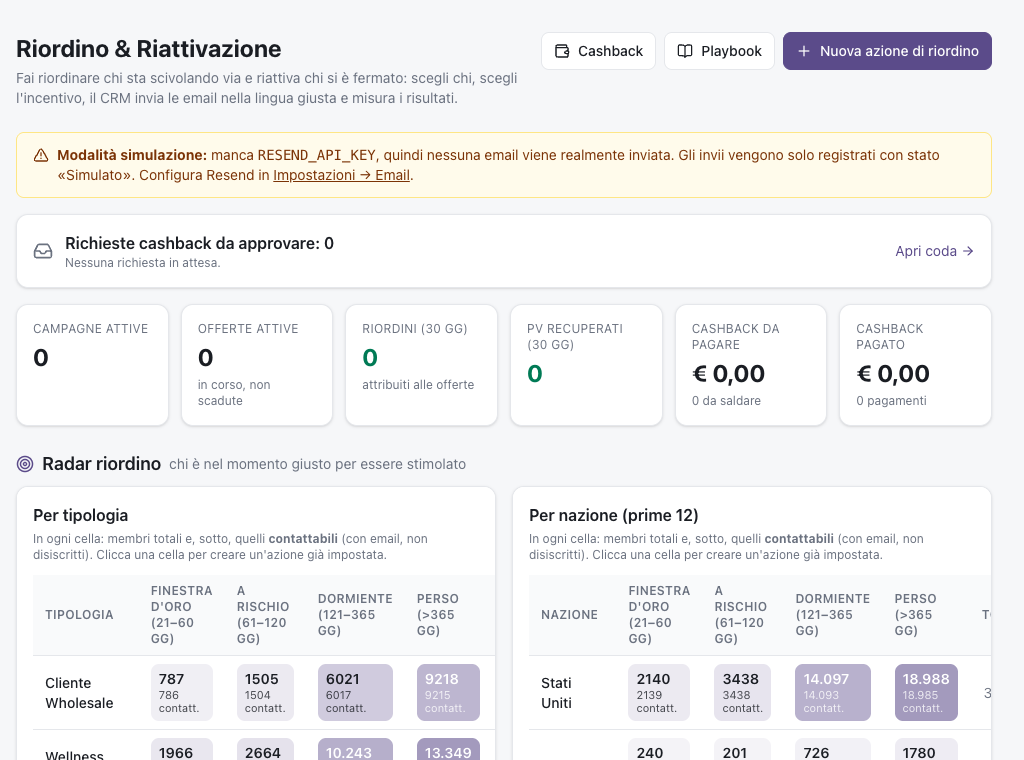
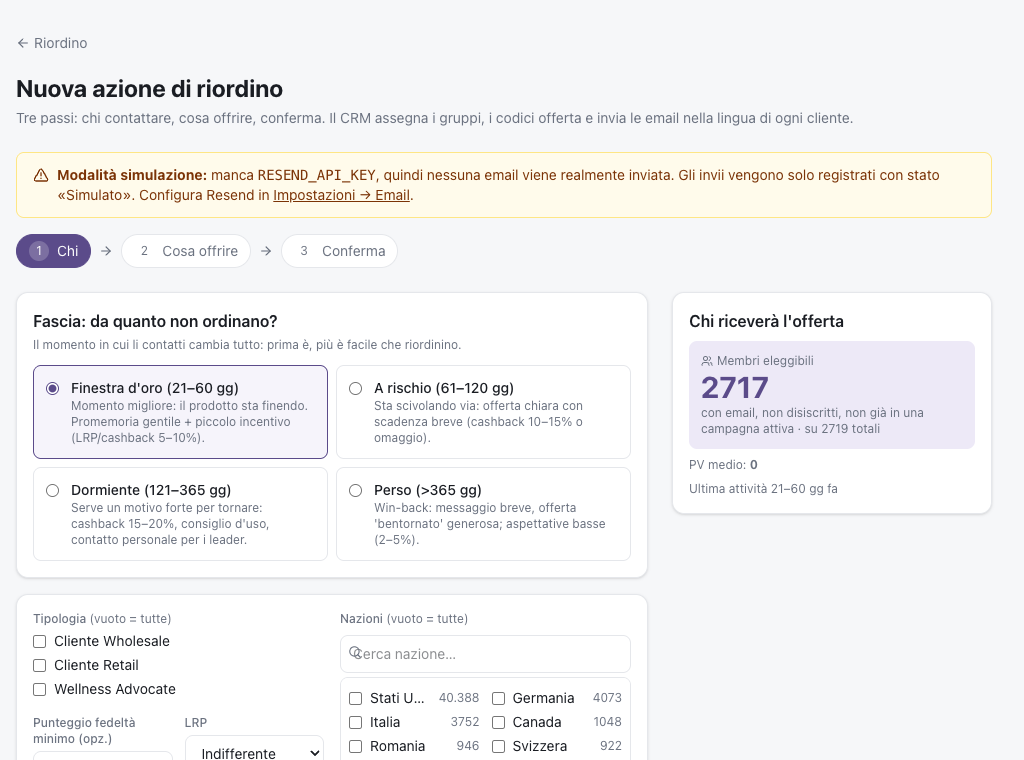
The captures come from the app as it is today. The interface runs in English and Italian; these happen to be in Italian.
What to look at, every week
- Home — who to contact now, and what is stuck. If there is nothing to do, it says so.
- System status — sync, sending, sender health, payments. A summary also reaches you by email every morning.
- Results — how many reorders came in on top of the control group. That is the honest number.
Download the extension
Install it from the Chrome Web Store: one click on “Add to Chrome”, no Developer mode, and it updates itself whenever we improve it. Then copy your CRM address and token from the Get started page into the popup — two fields, once.
Same extension, reviewed and published on the official store. The pre-configured ZIP below remains available if you prefer not to paste anything.
The generic build
The same extension with no account details inside it: you paste the CRM address and your token into the popup by hand. Useful if you want to read the code before installing anything, or to install it before signing up.
Download the generic build (ZIP)This package contains no token: it cannot reach anybody's data until you configure it yourself.
https://app.downlineautopilot.com/api/extension/public
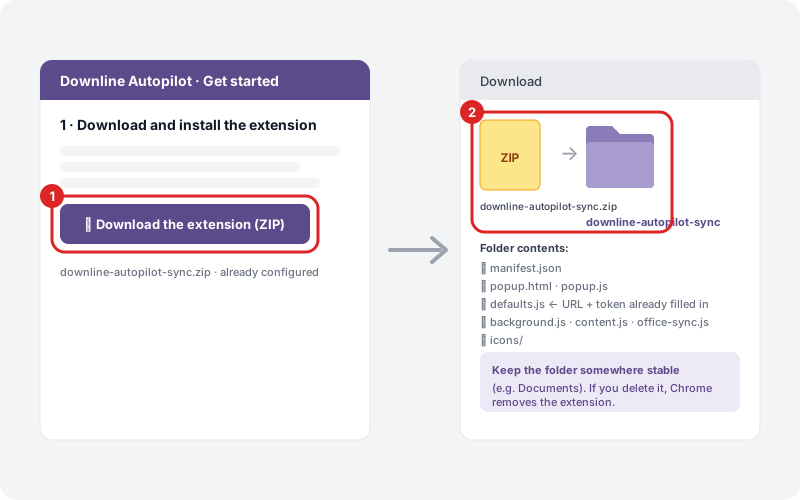
The captures come from the app as it is today. The interface runs in English and Italian; these happen to be in Italian.
Questions people actually ask
Is it safe? What can the people behind it see?
Data lives in a database where every account is isolated from the others: no subscriber sees another's organization. Whoever runs the platform can technically log in for support — as in any subscription software — and every such access is logged. Customers' bank details, if you use cashback, are encrypted.
What about my myOffice password?
Nobody has it. The extension reads the pages you are already looking at, while you are the one logged in. It does not log in for you and it stores no credentials.
Is doTERRA okay with this?
The tool does nothing you couldn't do by hand: it looks at your own reports and emails your own contacts with your own link. It does not use the doTERRA brand as the sender, makes no income claims, makes no health claims — texts are checked automatically — and never writes to anyone outside your organization. That said, distributor policies exist and must be respected: if you are unsure about your market, ask Compliance before scaling up.
Will I end up in spam?
Fair worry. The system starts slow (200 emails on day one, then more), writes only inside each recipient's local window, never sends more than one email per 72 hours to the same person, always includes the unsubscribe link and your postal address, and stops by itself if bounces or complaints cross a threshold.
How much time does it take?
Fifteen minutes the first time. Then one quick sync a week — about two minutes — and a glance at the Home page. The automations run on their own.
Can I try it without sending anything?
Yes, and it is the recommended way: import, look at the numbers, prepare a campaign and read the email previews. Nothing goes out until you flip the switch in Settings → Email.
What if I sync twice, or make a mistake?
Nothing. Syncs are repeatable: data is updated instead of duplicated. Campaigns can be cancelled, and nobody receives the same email twice — the system tracks what has already gone out even if the server restarts mid-send.
What is cashback, and is it worth it?
It is optional: you can promise customers a small amount for reordering, paid by you from your own account (PayPal, Wise or Airwallex, connected in Settings → Payouts). It is earned only by people who actually clicked in your email, so those who would have bought anyway cost you nothing, and until you switch on real payments every payout is simulated. Whether it pays is a question the control group answers with numbers instead of gut feeling.
If I stop, what happens to my data?
It is yours. You can export members, orders and statistics as CSV at any time.
Does it work on a phone?
The CRM does — this page included. The extension doesn't: syncing needs Chrome on a computer, because that is where myOffice lives.
What does it cost?
The trial is 14 days, with no credit card, and it extends to 28 days as soon as you launch your first automation. After that, plans start at $47 a month.
Plans and prices
No code, or this link was forwarded to you? You can buy an account like anybody else: 14 days free with no credit card first, and it extends to 28 days as soon as you launch your first automation.
- Up to 2,500 synced members
- 5,000 emails / month
- 1 user
- Segments, templates, campaigns, flows, reorder
- Cashback + payouts from the CRM
- Up to 15,000 synced members
- 30,000 emails / month
- 3 users
- Segments, templates, campaigns, flows, reorder
- Cashback + payouts from the CRM
- Your own sender domain
- Unlimited members
- 100,000 emails / month
- 10 users
- Segments, templates, campaigns, flows, reorder
- Cashback + payouts from the CRM
- Your own sender domain
- API & webhooks
- AI copy included
- Priority support
Prices are per month, billed in US dollars.
Ready?
Start the trial, import your organization and look at the numbers. Nothing goes out until you switch sending on.
Start the free trialhttps://app.downlineautopilot.com/signup?lang=en
Stuck on something? Write to hello@wiseteam.app